Getting Started with KeepClaw
KeepClaw gives you a personal AI agent that runs 24/7 on dedicated infrastructure. No API keys, no servers, no DevOps — just sign in with Google and start chatting.
Step 1: Sign in with Google at keepclaw.ai. Google sign-in only for now. New users get a free 24-hour trial with 20 credits — payment method binding is required.
Step 2: Open the Dashboard and start your first conversation. Your agent is already online and ready to help.
Step 3: Connect Telegram or Slack (on Personal+ plans) to chat with your agent from anywhere.
Using the Chat Interface
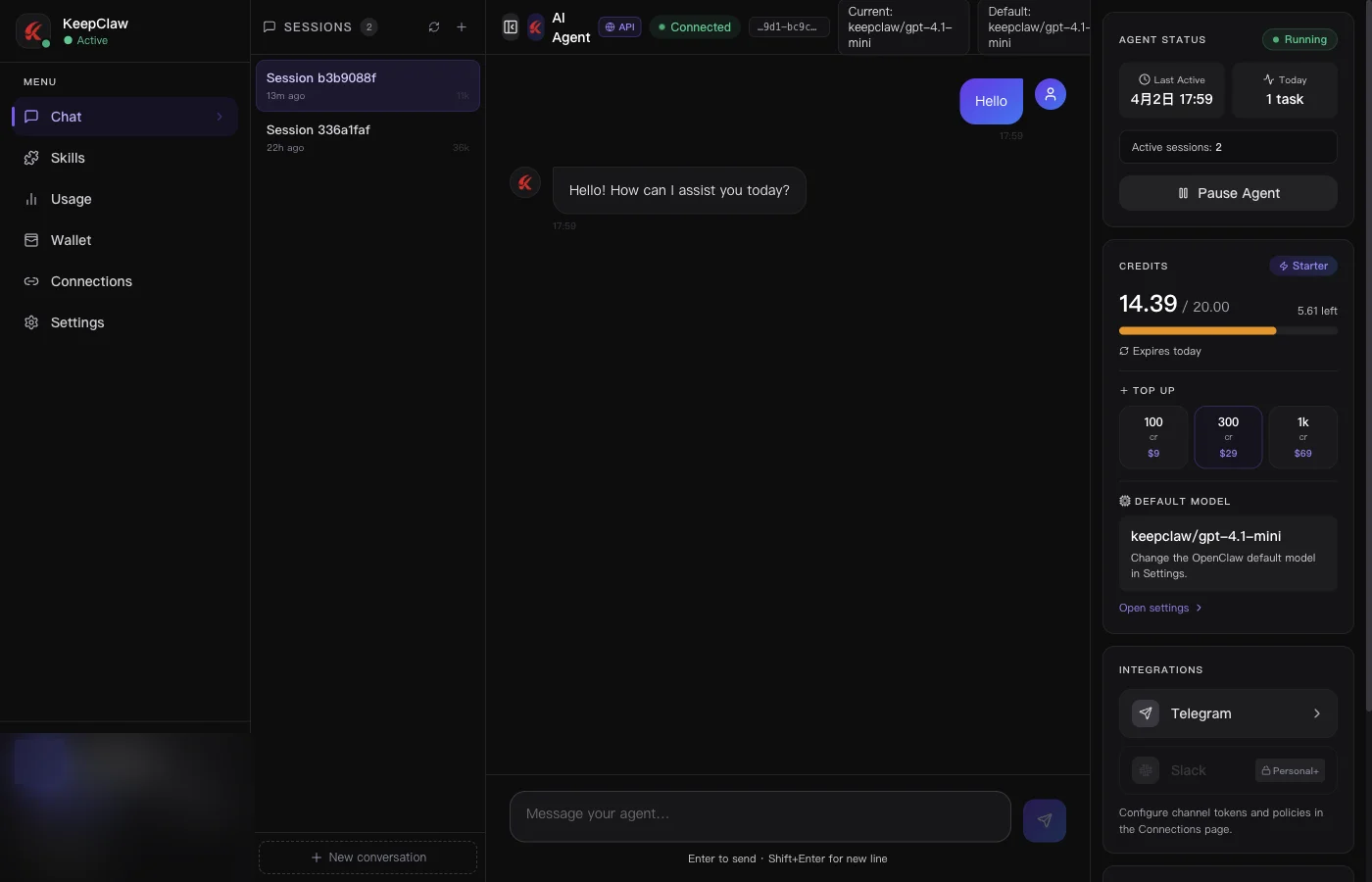
The Chat page is your primary workspace for communicating with your AI agent. All conversations are saved and accessible from the sidebar.
Tips & Tricks
- Use the sidebar to manage past conversations. Start a new chat for different topics to keep context clean.
- Your agent remembers previous messages within a conversation. For long tasks, provide clear, specific instructions.
- The agent can search the web, analyze data, and generate content — try asking it to summarize articles or draft emails.
- If the agent gives an incomplete response, simply ask it to continue or clarify what you need.
Tracking Your Usage
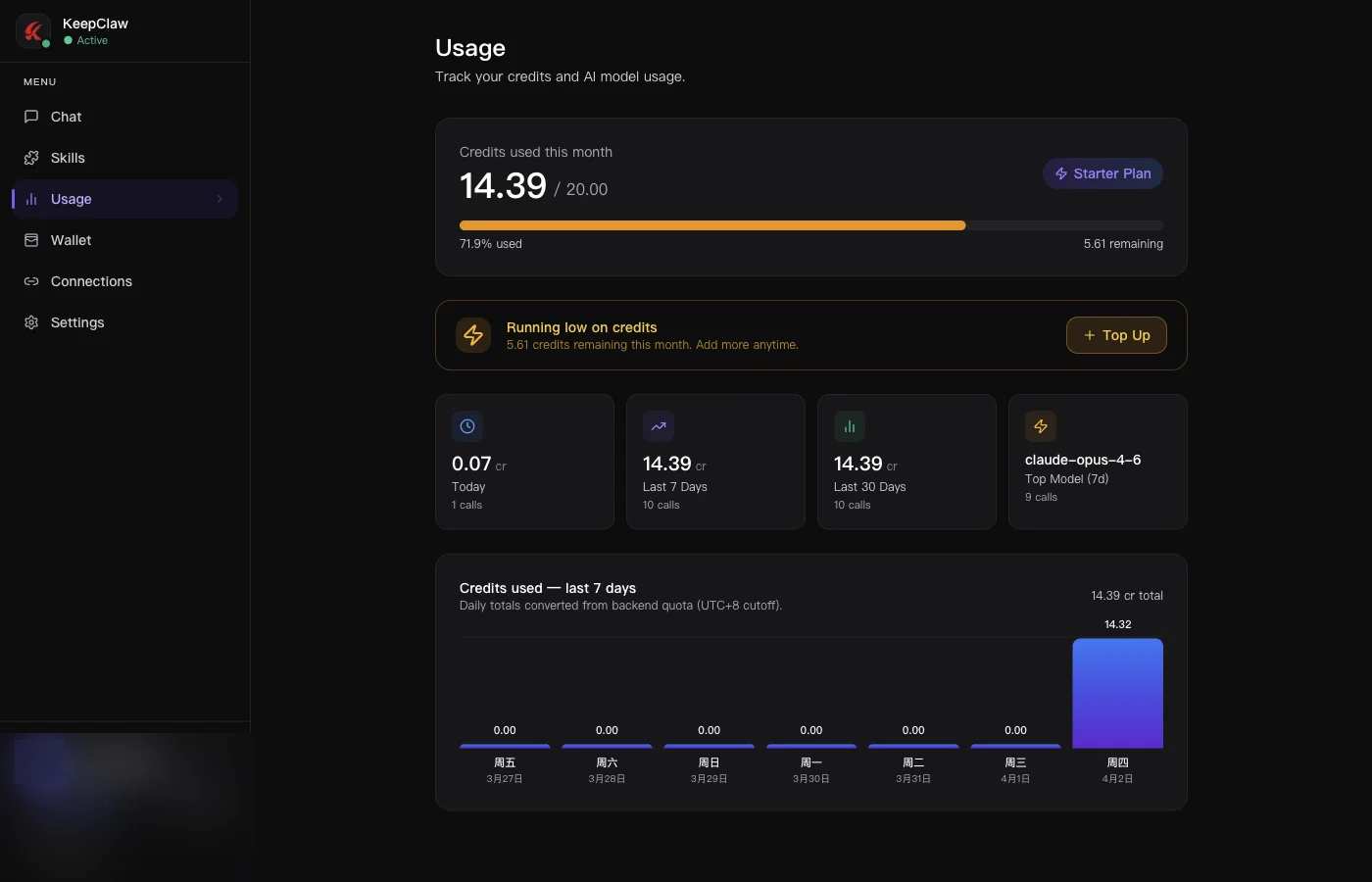
The Usage page shows your credit consumption in real time. Monitor daily, weekly, and monthly usage alongside the models your agent uses most.
Tips & Tricks
- Check the 'Top Model' stat to see which AI model consumes the most credits. Lighter models (like Gemini Flash) use fewer credits per request.
- The daily bar chart helps identify spikes. If usage spikes unexpectedly, check your conversation history for runaway tasks.
- Set up low-credit alerts in Settings to get an email when your balance drops below a threshold.
Managing Credits & Add-on Packs
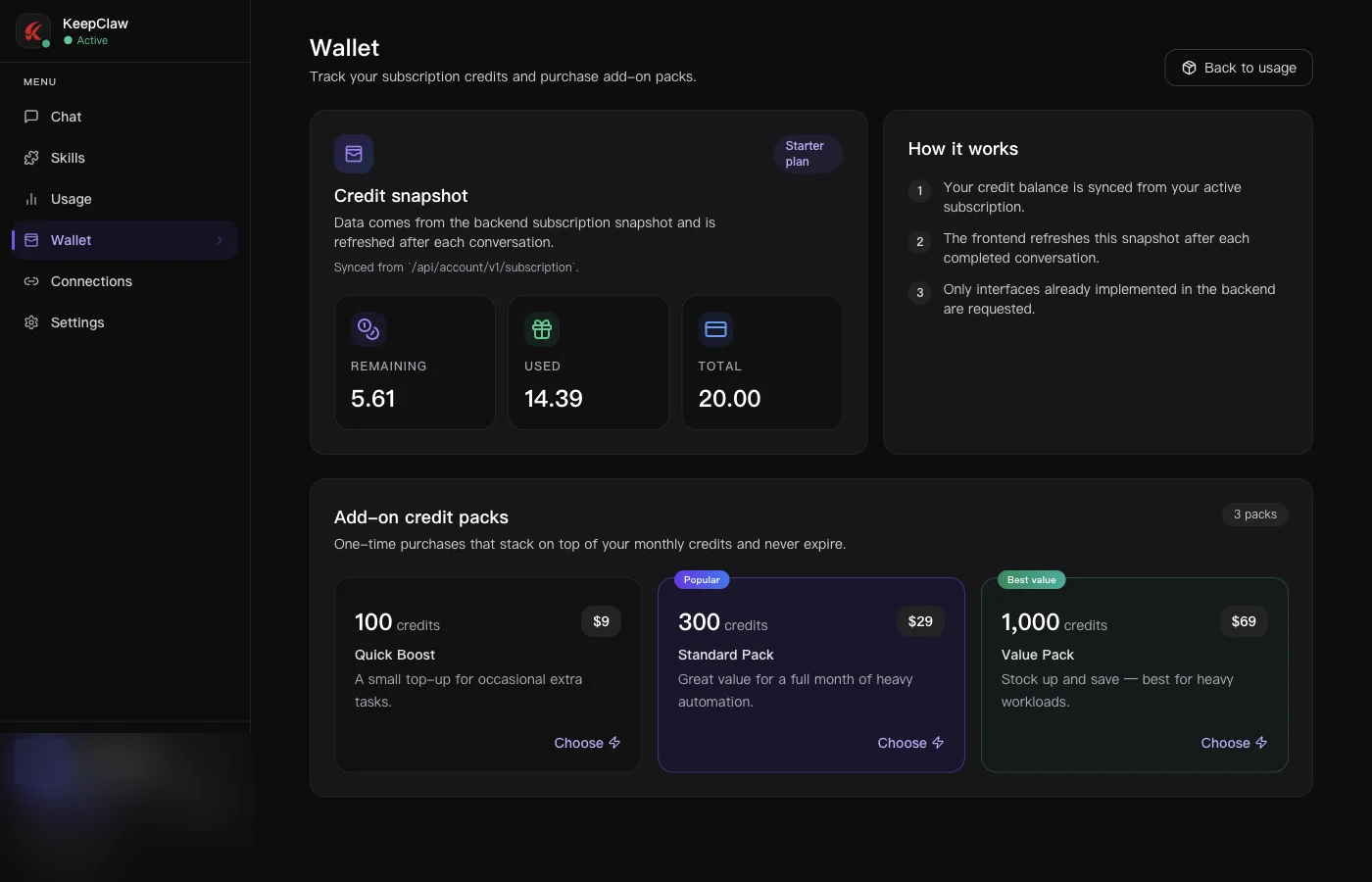
The Wallet shows your credit balance and lets you purchase one-time add-on credits that never expire. Add-on credits stack on top of your monthly subscription credits.
Available Add-on Packs
100 credits total
A small top-up for occasional extra tasks.
$9.9 one-time
300 credits total
Great value for a full month of heavy automation.
$29.9 one-time
900 credits total
700 base + 200 bonus
Stock up and save — best for heavy workloads.
$69.9 one-time
Tips & Tricks
- Add-on credits never expire — buy in bulk to save money if you know you'll have heavy usage periods.
- Your subscription credits reset each billing cycle, but add-on credits carry over. Use subscription credits first.
- Watch the 'Remaining' number in the credit snapshot — when it drops below 5, you may want to top up.
Connecting Telegram & Slack
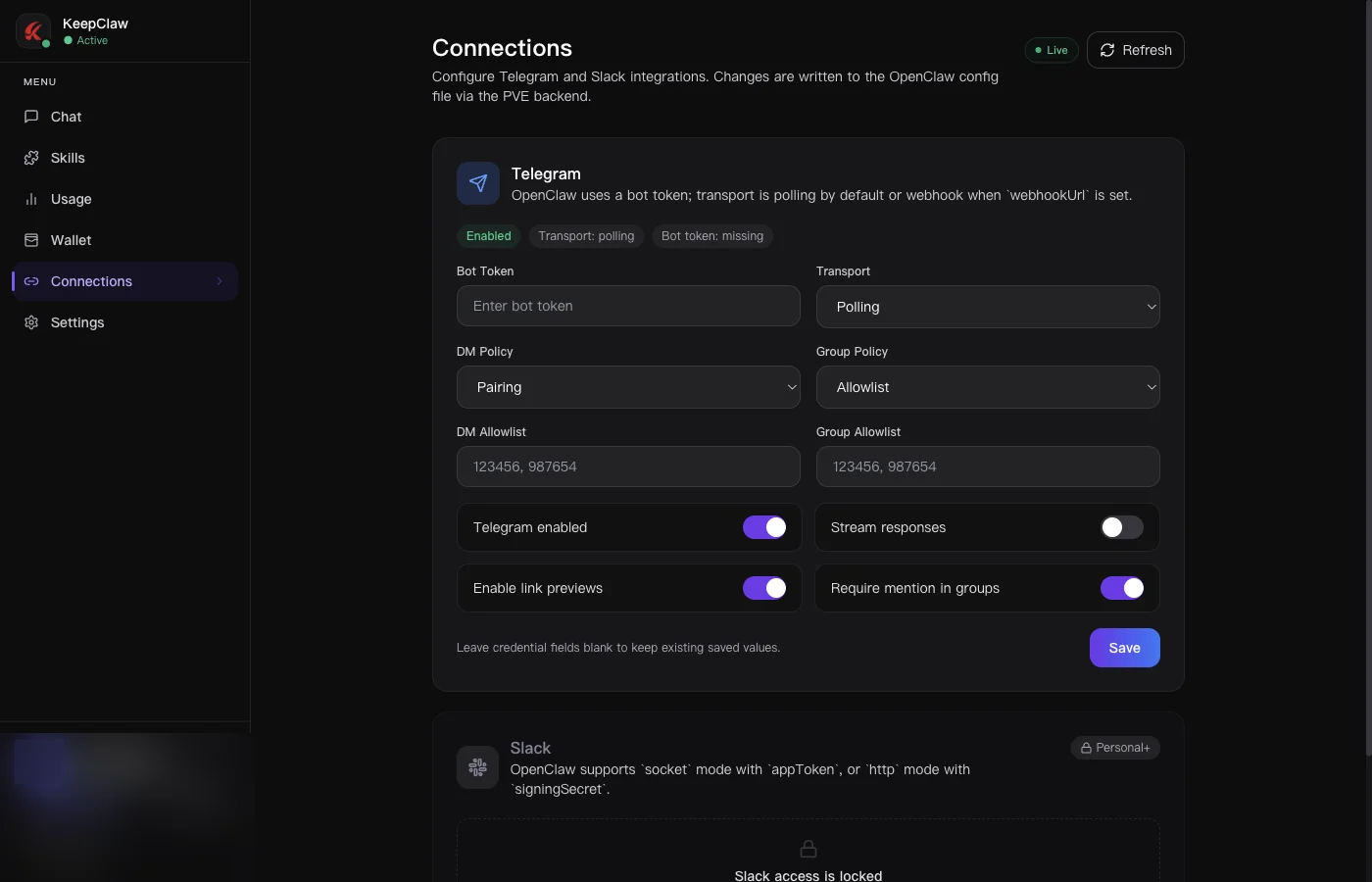
Connect your agent to external platforms so you can chat from anywhere. Telegram is available on all plans; Slack requires Personal or Pro.
How to Set Up Telegram
- Create a Telegram bot via @BotFather on Telegram. Copy the bot token.
- Paste the bot token into the 'Bot Token' field on the Connections page.
- Set DM Policy to 'Pairing' and enter your Telegram user ID in the DM Allowlist.
- Toggle 'Telegram enabled' on and click Save. Send /start to your bot on Telegram.
Tips & Tricks
- Use 'Polling' transport for most setups — it's simpler and doesn't require a public URL.
- Enable 'Stream responses' for a real-time typing effect as the agent generates its reply.
- In group chats, enable 'Require mention' so the bot only responds when explicitly mentioned.
Account Settings
The Settings page lets you manage your profile, subscription, and AI model preferences.
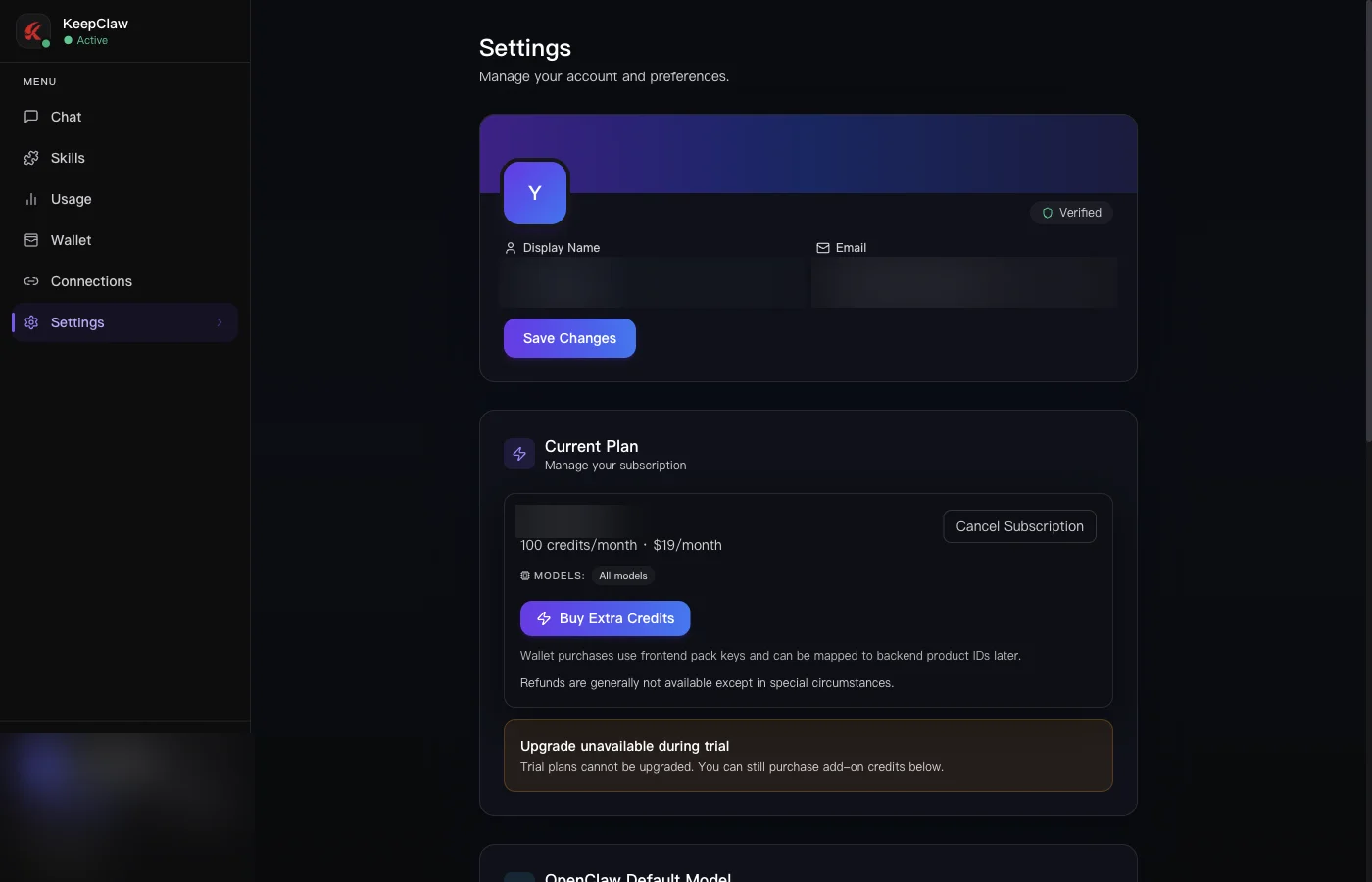
- Update your display name and email address.
- View your current plan and manage subscriptions (cancel or upgrade).
- Set the default AI model and fallback order for your agent.
- Enable low-credit email alerts with customizable thresholds.
Pricing & Plans
KeepClaw offers three plans with dedicated compute, all AI models included, and 24/7 uptime. Annual billing saves 20%.
See the Pricing page for the latest plan credits and limits.
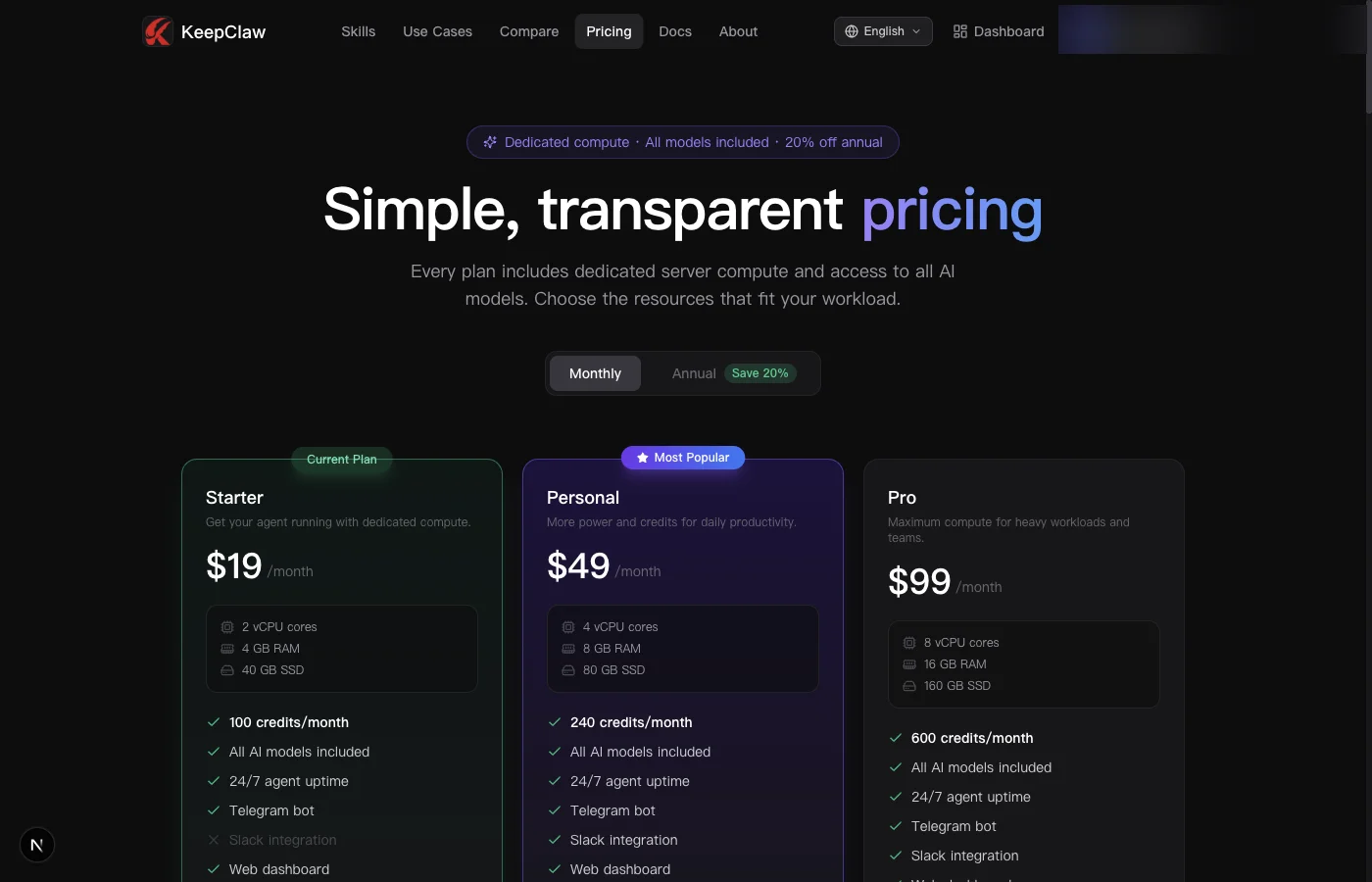
Starter
$19/mo
- ✓2 vCPU cores, 4 GB RAM, 40 GB SSD
- ✓Telegram bot + Web dashboard
- ✓Usage analytics
Personal
$49/mo
- ✓4 vCPU cores, 8 GB RAM, 80 GB SSD
- ✓Telegram + Slack + Web dashboard
- ✓Priority support
Pro
$99/mo
- ✓8 vCPU cores, 16 GB RAM, 160 GB SSD
- ✓Telegram + Slack + Web dashboard
- ✓Dedicated support + SLA
Pro Tips for Power Users
💡 Use lighter models for simple tasks
Gemini Flash-Lite and Gemini Flash consume far fewer credits than GPT-5.2. For simple Q&A or summarization, lighter models give you more bang per credit.
💡 Break complex tasks into steps
Instead of one massive prompt, break your request into smaller parts. This gives better results and makes it easier to course-correct mid-task.
💡 Set up recurring automation
Ask your agent to run daily digests, weekly reports, or scheduled monitoring. Example: 'Every Monday at 9am, summarize the top 5 AI news stories.'
💡 Use Telegram for on-the-go access
Connect Telegram to chat with your agent from your phone. It's the fastest way to get answers when you're away from your desk.
💡 Monitor usage to avoid running out
Check the Usage page regularly and set up low-credit alerts. Running out of credits mid-task can interrupt important workflows.